How to Kill Focus Stealing Update Helper Without Deinstalling Corel Apps

General / 19 April 2021

It took me a while to find the culprit of an annoying focus-stealing hiccup in OSX.

At first it was harmless, just annoying. When working with my new 24 Artist Pro Tablet from XP-Pen I experienced a sudden misalignment of the cursor, nearly 15 minutes after every calibration.

I even catch the driver by being disconnected for a second and wrote to the XP-Pen service about this issue as I assumed it to be a driver issue and it appeared just with the new UI-driver from XP-Pen, the official driver did not show this at all.

I looked for an app that would help me find the "focus-stealing-app" and found this tool in the EventViewer from Karabiner-Elements which I can recommend as it is easy to use.

The glitch happened also in Photoshop when painting and it would take a few seconds to register keys or strokes again when painting. With the EventViewer I found that CUH.app was responsible for these timed hiccups:

Bundle Identifier:  com.corel.CUH
File Path:          /Library/Preferences/com.corel.CUH/CUH.app/Contents/MacOS/CUH

It also does not help to watch out for it on the activity monitor because like a real potentially unwanted program it pops-up every 15 minutes and then close after a few seconds.

This is a very bad behavior from Corel and it made clear to me that this company does not deserve my money in the future.

Other artists and users came up with a solution - namely uninstalling the software as a whole. But since I paid money for this, that solution was unacceptable, so I found a way to make it work without the annoying adware from Corel!

I can only speak for Mac, but I assume there is a similar app out there for Windows.

First I used the path from the EventViewer above and deleted that particular folder, however that did not help as the PUP did re-instal itself and haunted me again as a Potentially-Unwanted-Zombie-App! Oh noes!!

Now I went on trying to deactivate messages from within the app which can be done in the Corel ... Menu like here:

But that did only work for another 15 minutes. If you want to try that yourself, the menu where you can uncheck the options might look like this:

Now I went on and installed Knock-Knock from Objective-See:

https://objective-see.com/products/knockknock.html

It is an investigative tool to find potentially unwanted programs on your Mac and it goes into the deeper libraries to see if there is something that does not belong there - it also looks up files on VirusTotal for malware rating. 

I'm sure there is an equivalent for Windows out there. You could also do a deep search on the filename from explorer. Since I got the info from the EventViewer that CUH.app is responsible, I looked that up in Knock-Knock and found 2 listings. 

If you find only one entry it might work but I'm rather sure there are 2 different apps in preferences and application support that have to be found - and whatever the equivalent is on Windows.

I then opened the paths and instead of deleting them, I added .bak at the end of the filename but I'm sure if you add .f**koffCorel at the end it will work well too ;)

Since then there is silence and the program still works!

I kept the EventViewer open for around 3 days just to see if there is another resurrection of the zombie-app but so far it is clean.


Report

Things I Wish I Knew before Buying a Wacom Cintiq Pro Tablet

General / 27 February 2021

I just abandoned Wacom Cintiq’s altogether after 8 years now, hello to my new XP-Pen Workspace ;)

If you want to know more, here is the link to the full review of the 22“ Artist Tablet 2nd Gen from XP-Pen which I tested thoroughly: https://www.fantasio.info/2021/02/xp-pen-22-artist-2nd-gen-review.html

If you have questions about the 24" Pro, I can answer them in the comments...

And below you find my personal story about why I would not recommend a Wacom Product larger than 13" to anyone:

Just a quick note that I’m not affiliated with XP-Pen or Wacom, I just had the opportunity to test the XP-Pen Tablet and it was a good time to see what other manufacturers are up to - to a degree I felt silly to have paid Wacom a premium price for those bad products in the past - but that might be the last time anyways. Below you can learn more about why I abandoned Wacom Products altogether - that is personal and has nothing to do with the review in general.

The main Issue - Wacom does not learn or listen to customers

This one is especially true for the Cintiq-line of products. First they come up with a faulty 24 Cintiq that got random blackouts more than 10 years ago.
Then they design a 27 QHD that was too large for the resolution it had but at least you could choose between non-touch functionality or pay a premium 800 € on top for touch that did not work properly.

A few years ago they came up with an actually good 24“ and a too big 32“ tablet, big is fine but why do the bezels waste 20 cm of my desk left and right???.
Now, users are forced to buy touch-functionality even if it just works half of the time (I actually never used it) and both tablets, the 24“ and the 32“ suffer from dissipating too much heat which causes Pixel-failure-patches. 

Yes you read that right „PATCHES!!!“ We are not talking about 1 or 2 spots , we are talking about lines upon lines of colored dots that cover 2/3 of the screen!

See the wonder of technology below:

I don’t know how to work that you don’t get these failures, maybe you just put the tablet in a corner without any power to it.

But wait, I did exactly that when I worked with the XP-Pen Tablet and after I put the Wacom back on my desk with power-on, the previous patch has doubled in size!!! So even not using the device forces these pixel-failures!!

And if that were not enough, fans in the tablet make a steady noise. My workaround with silent fans under the desk helped a bit, but the pixel-failures happened anyways, which made me think it is still too hot for the tablet or you can’t use it with a pen because of the pressure - which is bad for a drawing tablet… 

Also; you don’t get any information from Wacom as to what causes these failures so you could do anything to prevent that from happening, no - which means it is just a faulty display and they are stuck with so many faulty displays that they rather return them to customers instead of stopping production - call products back and refund customers - like any good and trustworthy company would do.

They ask a premium price on features no one wants (Touch) and that does not even work right. This premium price might include two times return for a replacement device, but at the end of the warranty you are stuck with a failing device that no one wants and that you can’t even resell = really expensive trash!

Oh and we are not at the end of how we describe the term „bad“; because anytime you have to send the tablet to Wacom you are stuck with the call-center or not working support-forms and if you are one of the „happy“ customer to receive an answer you have to package everything and need a replacement for about 5, 8 , 10 or maybe 20 days. Not that easy for a professional artist with deadlines, been there, done that and hopefully for the last time around. This makes me think that the „Pro“ in the name of Wacom products means rather Procrastination… 

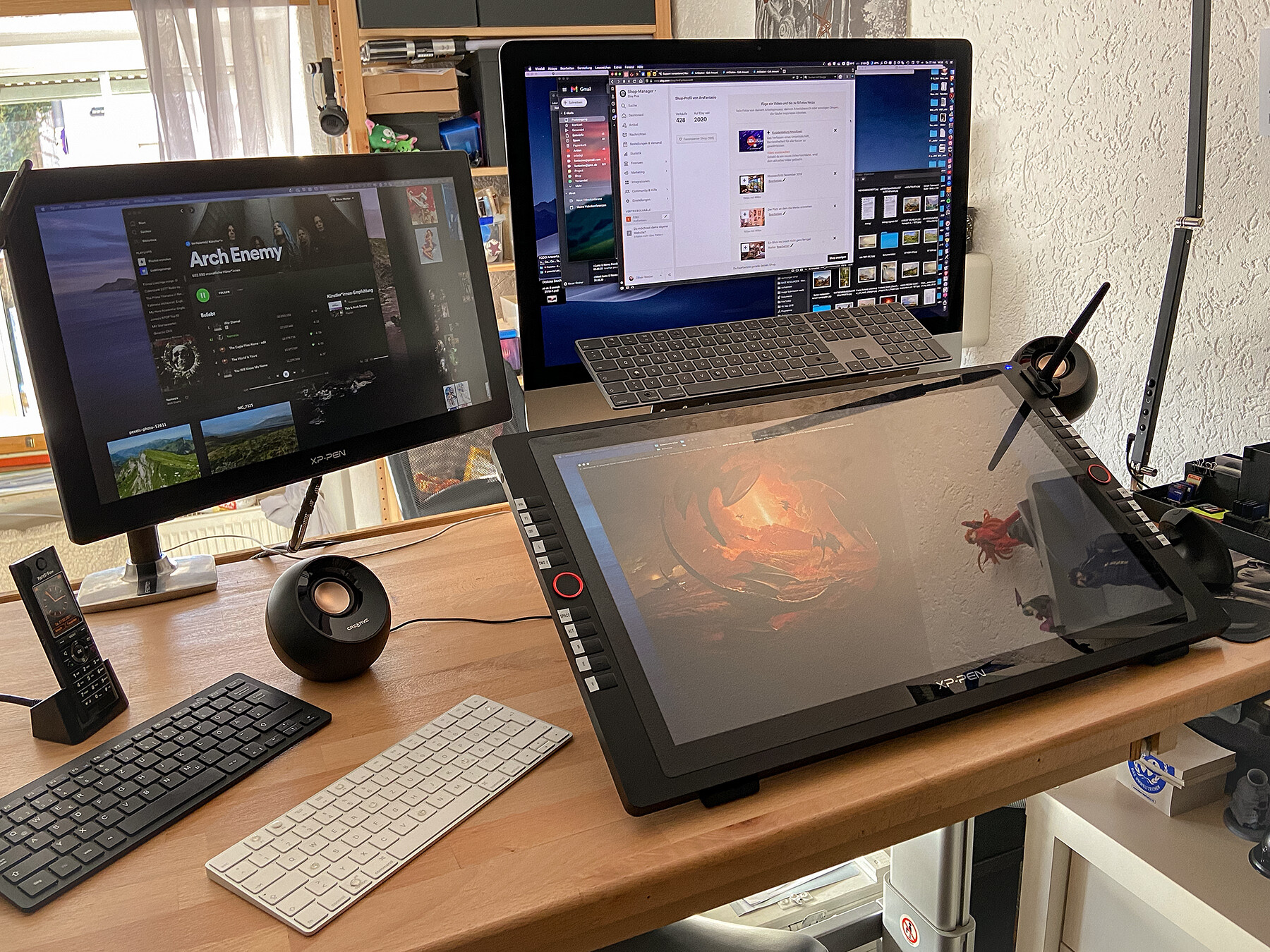
One big issue for me was that I was afraid I could not go smaller once I was used to the 32“ tablet size and resolution - boy was I wrong. The 22“ Tablet from XP-Pen was a bit of an enlightenment for me. For the review I tested it thoroughly for about 10 days and thought to myself: "with around 2“ more and 2.5k resolution this would be perfect and I would have more space on my desk to use a keyboard and a mouse again!!"

That is why I turned to XP-Pen’s 24“ Artist Pro Model - it is just perfect from size and resolution. The 22“ is used as display only on the Mac and I have a PC connected to it for outsourced tasks - for which it is perfect! So far I don’t miss anything. I just hate to have the bulky package of trash from Wacom standing around.


Report

Merry X-Mas 2019

General / 21 December 2019

It is that time of the year again.

From a business perspective, 2019 was a blast!

I got a lot of opportunities, met some awesome people, put a lot of effort into workflow optimization, got a brand new Wacom Cintiq 32" Tablet, shipped more orders via the online store than ever before, rejected 90% of commissions to focus mainly on my own art - which I did not even got that much to because of the rise in demand and backorders - I have just one word for this: "Amazing".

Changing from freelance artist to independent = mission "nearly" accomplished.
Nearly because some commissions or projects are fun and I want to keep the good clients, the ones who push me to become a better artist. It is also a major personal accomplishment, anyone who always said "Yes" to everything knows that this is not an easy task.

Goals for 2020 besides being able to afford a new Mac Pro and XDR Display... are that I want to spend more time on creating, getting a team together which helps me at conventions, production and orders.

I hope to get more Landscapes done and Portraits next year because I want to do a Portrait Pocket-Artbook and a new Landscape Calendar.

A Landscape Artbook is also planned but it is possible that I will do a kickstarter for this and I want to have the best people around - so this will most likely take longer - but maybe I will do a prototype first via blurb. I also want to focus more on some rights-free and original works too because of a deal I have with a partner who can print and distribute my work on Playmats and basically any material else. We have plans for doing the Android girls on Metal and so on. We are in the talks to create a new company just for this, so stay tuned for more.

That's it for now, I hope that you will have an "Amazing" holiday-time and thank you so much for your support, you are a part of this and your contribution helps a lot!

Btw. for those who want to shop around in my online store over at www.fantasio.shop,
you can save 10% on a purchase with the code: CCD2019

Report

The 5 Favorite Photoshop Plugins I can't live without

General / 09 July 2019

When it comes to workflow I like to have control over the outcome as much as possible.

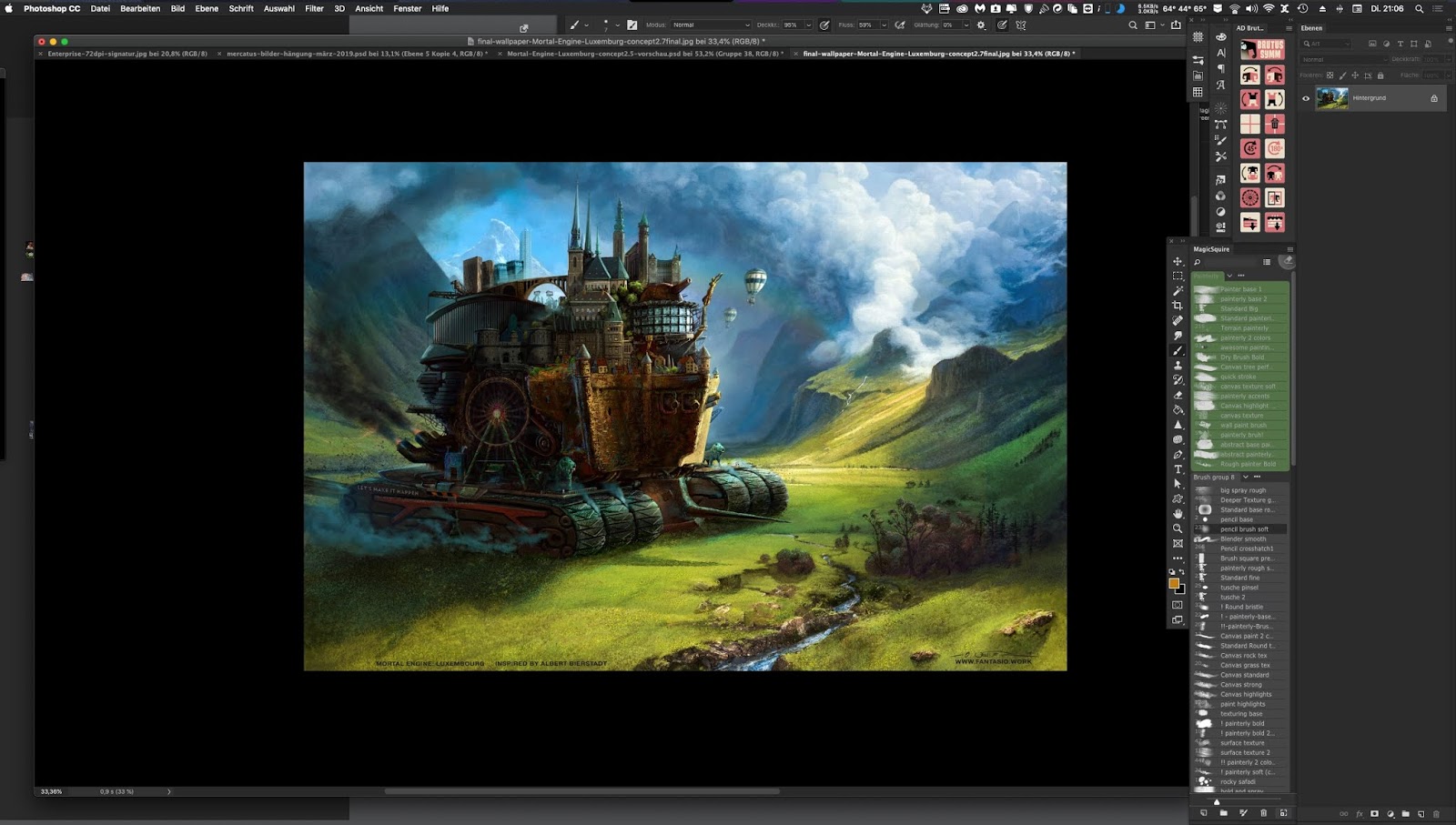
My Adobe Photoshop UI is therefore a good compromise of having enough screen real estate and all the tools I use on a regular basis.


For my tools of the trade, there are a number of hardware and software solutions that I rely on and it might not be a surprise that Photoshop is still leading the pack.


However, since Photoshop is still not perfect, I also rely on a number of Add-ons that fill the gap for me. You can view these Plugins as similar to Browser Add-ons; they are not necessary but provide a better user experience.


In this post I want to highlight my favorite plugins starting with:


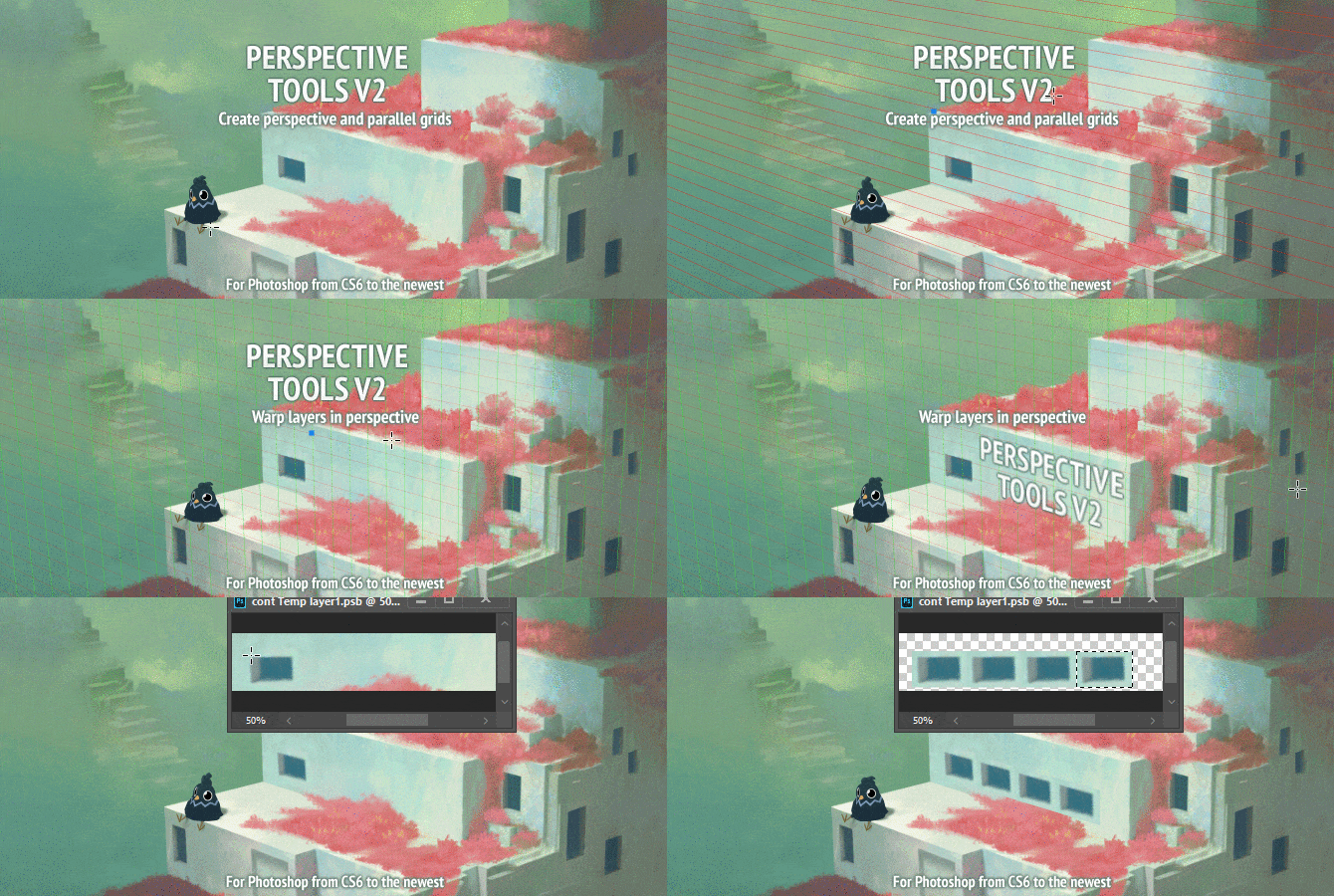
#5 Perspective Tools V2.0 ($15)

https://gumroad.com/l/PT2

Perspective Tools is a small but smart panel developed by Sergey Kritskiy. He has a number of tools and tips published on his website (if it is down, here is a link to his Gumroad: https://gumroad.com/kritskiy). This one tool is especially useful for digital artists and concept artists working with environments. But it is also very useful for Graphic artists and Designers who often need to place designs or text in perspective - say on products - on a regular basis.


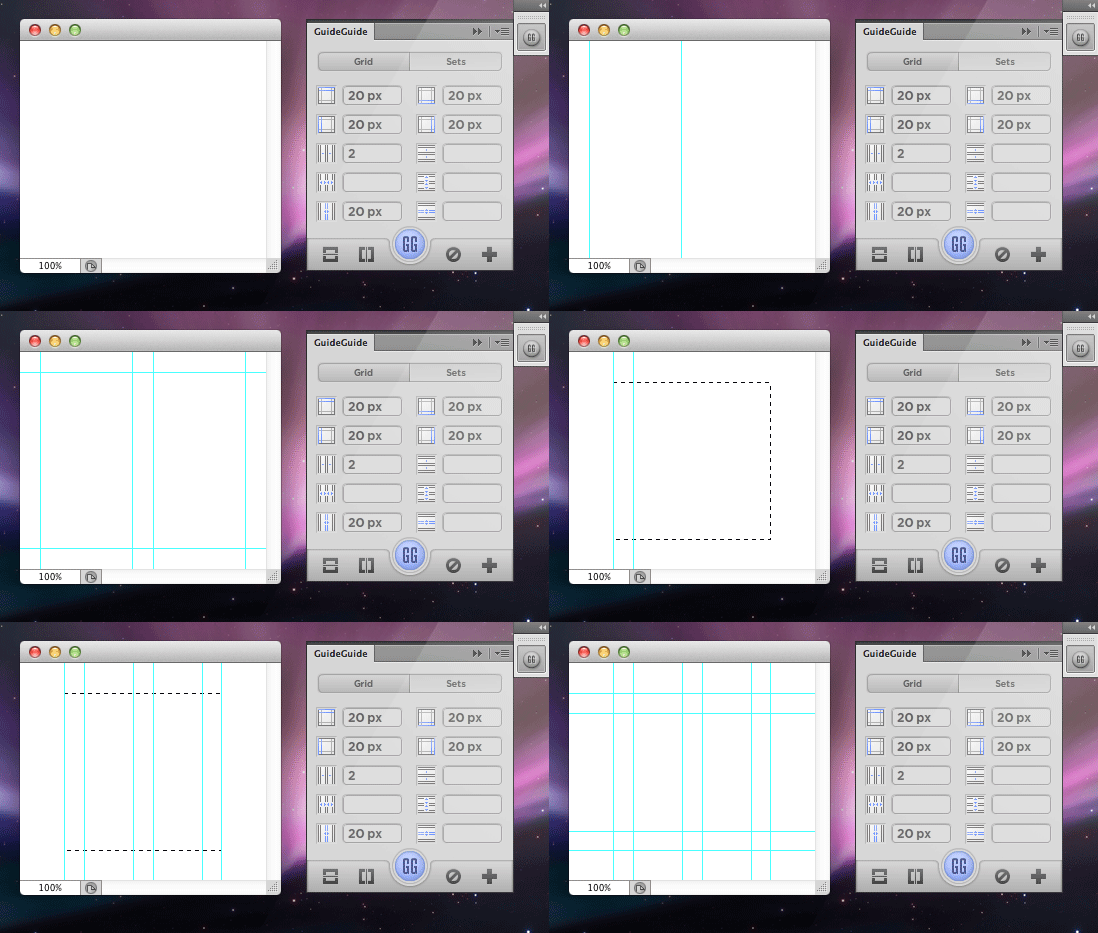
#4 GuideGuide (Free)


https://guideguide.me/


GuideGuide is perfect for any graphic artist. I said I would never need this, until I wanted to print a 5-Panel-Canvas-Piece ;) 


#3 ColorFriends (Free)


https://1drv.ms/u/s!AopgJHsR5pmmu_AiliJsRMjaTUALpA


ColorFriends is a nifty plugin that allows you to pick colors and see correlated warmer or colder swatches around your current color. Works with hue, saturation and brightness.

Developed by Vasiliy Kuznetsov in 2012, published with source code on Github:  https://github.com/vasiliy-kuznetsov/Coldwarm

Even though it is fairly old, it still works like a charm in the current version of PS (2019).


#2 Brutus Symmetry ($10)


https://creativemarket.com/Dukal/272381-AD-Brutus-Symmetry-%28PS-CC-Panel%29


Actually obsolete in Adobe Photoshop 2019, so why is it on #2 in your list?

While it is true that Photoshop has realtime symmetry since 2018, there are many situations where it comes in handy to rotate or mirror a layer with just one click of a button or to find the center point of a document with one click. Or sometimes you find a layer would benefit of being symmetrical afterwards, because realtime symmetry requires that you use it intentionally, right?


Its use goes far beyond just painting with symmetry even if the gif above does not reflect that!


The list of actions in this simple panel is something I use at least once a day and many other plugins go away after a few weeks, banned from the user interface, not AD Brutus Symmetry. Since the very first day of its installation I use it daily and don't want to miss it.

Awesome Job Mr. Dukal!


#1 MagicSquire ($19)

https://anastasiy.com/magicsquire


MagicSquire is a brush organization panel. Actually Adobe has updated PS with new features to organize brushes better, but there is still a lot of room for improvement. From coloring different sets to having different brush previews as also being able to organize  and import both; .TPL and .ABR files as also Mixer brushes and having any brush be an eraser by clicking the ALT key is a bliss.

There is an alternative out there by Sergey Kritskiy called Brusherator, but personally I find it a bit too chaotic. For someone who likes a tidy workspace, MagicSquire with all its features is the way. But maybe you try out both and find Brusherator better, who knows?


Why is it the Nr. #1? Because I use it not just everyday, but every time I use a brush in Photoshop, and that is very often. Having a reliable tool to find and organize all my gems is an important asset and worth every penny.


-


Since I always like to improve my workflow, I like to read about your favorite plug-ins or panels for Photoshop. Let me know your list in a comment.

Report

The Cover That Should Not Be, How To Deal With Rejected Illustrations

General / 23 December 2017


First off: the original article is from 2010, the work I'd produce now would look different, but my view about rejection did not change, therefore, the article and links are still relevant.
---

It happens to every illustrator, photographer or designer who is working for hire, but you´ll not find many who talk about that "dark -side" of the business very much.

Duncan Long has put it into the right words about the "death by committee" in this specific publishing industry. Maria Brophy has put the general illusion of rejection together into a blog - a recommended read.

It seriously has it advantages to have independent Authors who know what they want.

The problem most creative in this industry are facing is not a fickle temper of some art-directors or the editors, it is the committee and/or conferences, mostly consisting of salesmen: "those-who-know-what-works-and-what-not-because-of-the-numbers"


I was working on this cover for a German edition of Mike Resnick´s Stalking the Unicorn and it usually would remain in the nearly empty drawer of rejected works, but this one was different. The only given guideline was a "not-so-busy" version of the original cover created by no less than Dan Dos Santos, huh!

Something told me this will be a very nice work, I was given a great deal of freedom since no one, even the publisher didn´t knew what they wanted, ( actually this is a very bad sign) but however, I decided to finalize it with my own personal vision and also with the motivation to add this different "spec-work" to my portfolio, and wanted to put it up here into my series of "Book-cover- walkthrough´s" for those interested to see.


The left one was an initial pencil sketch, a rather Graphical approach, which should give the Agency more space for playing with colors and typo.

The right one, was done after the first round of feedback a perspectively digital sketch of the idea, since the editor liked the idea of the unicorn to be a neon-sign, which was, all-in-all, approved.


Based on the approved sketch, I did a colored one, the palette above is basically everything I used to achieve this mood. I work with 70% color on a new layer for each object, usually I group foreground, middle ground and background for later editing and changes.

Since the Editor didn´t like the Zombie-Gorilla with his umbrella *sniff*, since it would be too comic-like, I rather think of Japanese humor or English trash, but anyways, I left that funny detail out in the further work.

It appeared that some characteristics of the protagonist and some architectural details in the background needed to be adjusted, so that was in this version, but still some details are wrong, if you compare the different versions, you see what I have changed.

Here I added more details to the Newspaper, fur of the Gorilla, the hat and the trench coat, some effect on the lighting and corrected the perspective of the street-view.

The word "Roman" should be display of the genre in German, which is a nice idea, in this pre-final version I rendered out the face more realistic and added also more detail and light to it, while keeping the characteristics. But on a second look, the head is still to low which makes his appearance look wrong somehow.

After I got the message of it not being used, I put another hour of work into it, to add the umbrella to the gorilla which I liked so much in the sketch, set the head higher and added the rain to achieve a more dramatically, even "bladerunner-mood" effect. All in all, this illustration does resemble the ingredients of the original cover, without being so busy but still teasing, in my opinion.


To come back to the Headline:  

How to Deal with Rejected Artworks, in General? 

First thing is to not get angry about it, in most cases the artworks are great and the AD´s are happy, but one of the deciders may have a bad day, which makes your day bad as well;-)

On another note, you have put work into a project and you should at least be partially paid for it. In Germany a cancelateion fee of about 50% of the agreed payment is usually fine. Give or take something if you put more or less work into it, so at least you don't stand there with empty hands. Many international publishers know about cancelation or "Kill-fees" just ask them about it.

Well, you´re basically free to do with your work as you please.

In my case I add them to my "Art-archive" for Art-buyers to see. And if I´m really happy with them, I post something like this in my blog. Besides that, there are a lot of options, making prints, postcards or merchandise products, if you can identify with the work, or making a tutorial for a Magazine (paid) are the most useful actions.


But I´m also curious to hear other possibilities or stories, where turned down art shines in a new positive way.


Report